ip
Sylvia User Guide
Overview
Having a lot of things to do? Feeling frustrated because you cannot track all of them? Worry not, Sylvia is here to save the day!
Sylvia is a chatbot app for managing tasks and reminders, designed for use via Command Line Interface (CLI). If you prefer typing over using a mouse, you have come to the right place.
Table of Contents
- Installation
- Quick start
- Features
- Command summary
- Listing all tasks:
list - Adding a simple task:
todo - Adding a deadline task:
deadline - Adding an event task:
event - Marking a task as done:
mark - Unmarking a task as done:
unmark - Deleting a task:
delete - Finding tasks by keyword:
find - Undoing the last command:
undo - Redoing the last undone command:
redo - Showing manual:
help - Exiting the chatbot:
bye - Naviagating through the chat history
Installation
- Download the latest release (
sylvia.jar) of Sylvia from here. - Ensure that you have Java 11 or higher installed on your PC.
- Open the jar file by open up terminal, navigate to the folder containing
sylvia.jarand type:
java -jar sylvia.jar
- A window similar to this should show up with Sylvia’s greetings.
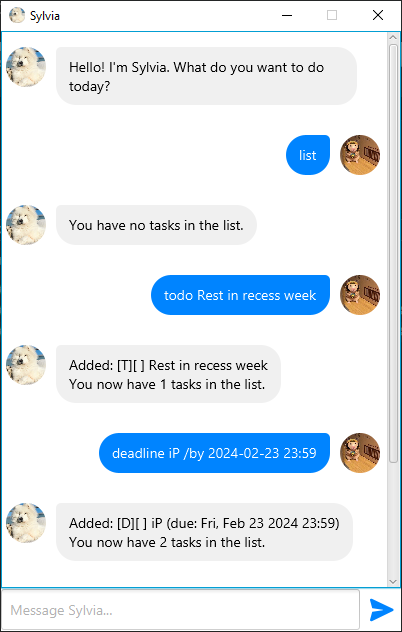
Quick start
Interact with Sylvia by typing in the chat box and press Enter to send it.
Some examples:
- To add a task, type in the chat
todo Groceriesand hit ‘Enter’. This will add a task with description “Groceries” to your task list. - To view all task, send
listto the chatbot. - Delete the first task of the task list by typing
delete 1. - Undo the most recent command by using
undocommand.
Features
How to read this manual
- Words in
monospaceare commands that you should type in the chatbot. - Words between
<and>are placeholders for required arguments that you should replace with actual values. For example,<task>should be replaced with the actual task description. - Words between
[and]are placeholders for optional arguments that you may include or omit. For example,[command]means that the command name is optional. - Aliases can be used to refer to the same command. For example, “Aliases:
list,ls” means that you can use eitherlistorlsto list all tasks.
Command summary
list: List all tasks.todo <task>: Add a new to-do task.deadline <task> /by <time>: Add a new deadline task. The time should be in the formatyyyy-mm-dd HH:mm.event <task> /from <time> /to <time>: Add a new event task. The date should be in the formatyyyy-mm-dd HH:mm.mark <task_number>: Mark the specified task as done. The task number is the number of the task in the list.unmark <task number>: Mark the specified task as not done. The task number is the number of the task in the list.delete <task_number>: Delete the specified task. The task number is the number of the task in the list.find <keyword>: Find tasks that contain the specified keyword.undo: Undo the last command.redo: Redo the last undone command.help [command]: Show manual on a certain command. If no command is provided, show manual for all commands.bye: Exit the chatbot.
1. Listing all tasks: list
List all tasks in the task list.
Usage: list
Aliases: list, ls
2. Adding a simple task: todo
Add a simple to-do task to the task list.
Usage: todo <task>
Aliases: todo, td
Example: todo Buy milk
3. Adding a deadline task: deadline
Add a task with a deadline (due) to the task list. The time should be in the format yyyy-mm-dd HH:mm.
Usage: deadline <task> /by <time>
Aliases: deadline, dl
Example: deadline Finish report /by 2022-12-31 23:59
4. Adding an event task: event
Add a task with a specific time period to the task list. The time should be in the format yyyy-mm-dd HH:mm.
Usage: event <task> /from <time> /to <time>
Aliases: event, ev
Example: event Meeting /from 2022-12-01 14:00 /to 2022-12-01 16:00
5. Marking a task as done: mark
Mark a task as done.
Usage: mark <task_number>
Aliases: mark, mk
Example: mark 1
6. Unmarking a task as done: unmark
Mark a task as not done.
Usage: unmark <task_number>
Aliases: unmark, umk
Example: unmark 1
7. Deleting a task: delete
Delete a task from the task list.
Usage: delete <task_number>
Aliases: delete, d
Example: delete 1
8. Finding tasks by keyword: find
Find tasks that contain the specified keyword.
Usage: find <keyword>
Aliases: find, f
Example: find book
9. Undoing the last command: undo
Undo the last command.
Usage: undo
Aliases: undo, ud
10. Redoing the last undone command: redo
Redo the last undone command.
Usage: redo
Aliases: redo, rd
11. Showing manual: help
Show manual on a certain command. If no command is in the input, show manual for all commands.
Usage: help [command]
Aliases: help, h
Example: help todo, help
12. Exiting the chatbot: bye
Exit the chatbot.
Usage: bye
Aliases: bye, exit, ex
13. Naviagating through the chat history
You can navigate through the chat history by using the up and down arrow keys, similar to how you would in a terminal. Use the up arrow key to go back (to older messages) and the down arrow key to go forward (to newer messages).
Acknowledgements
Sylvia is an adaptation of the Duke chatbot project from the NUS CS2103T module. The original project was created by the SE-EDU initiative.
This user guide was adapted from the AB3 user guide by the SE-EDU initiative.